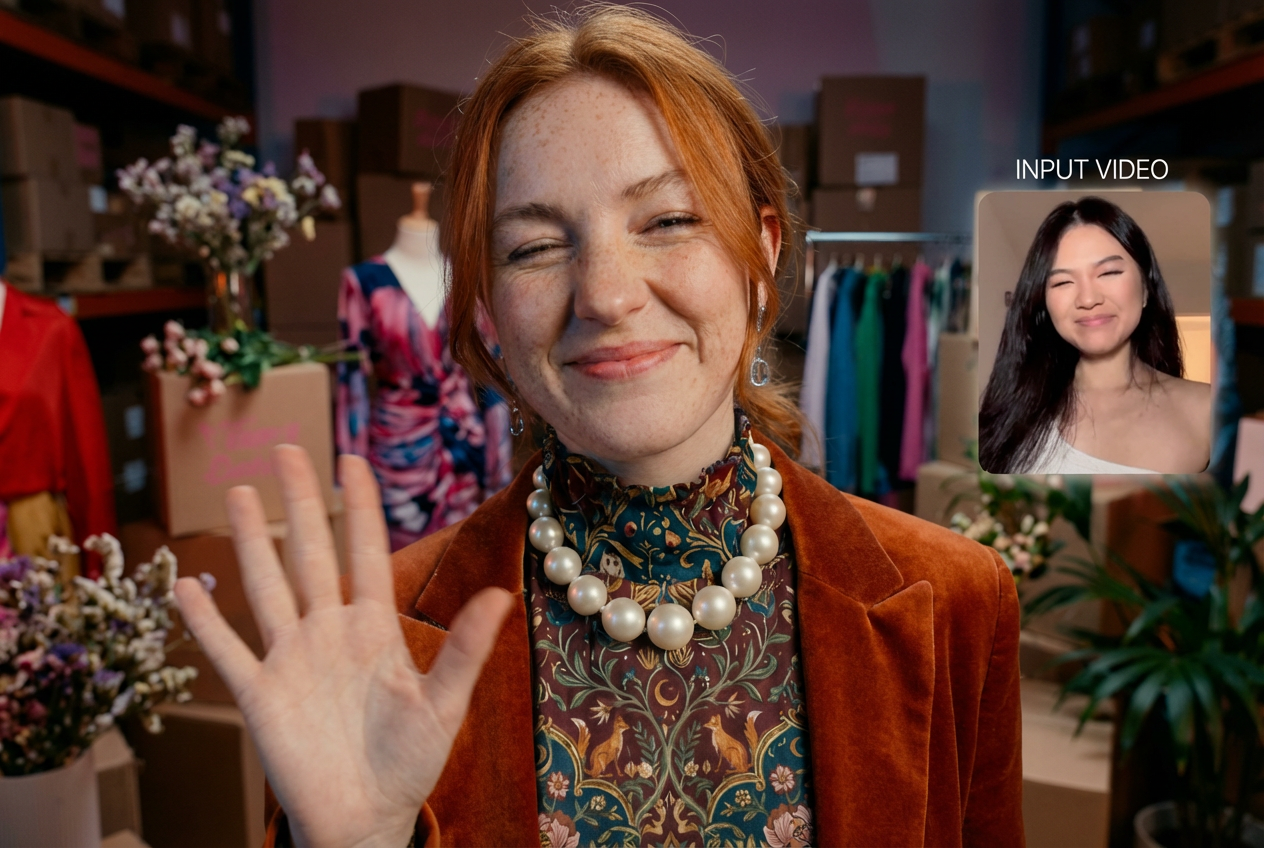
Sora 2 AI Video Generator – What’s New in the Model and How to Use It
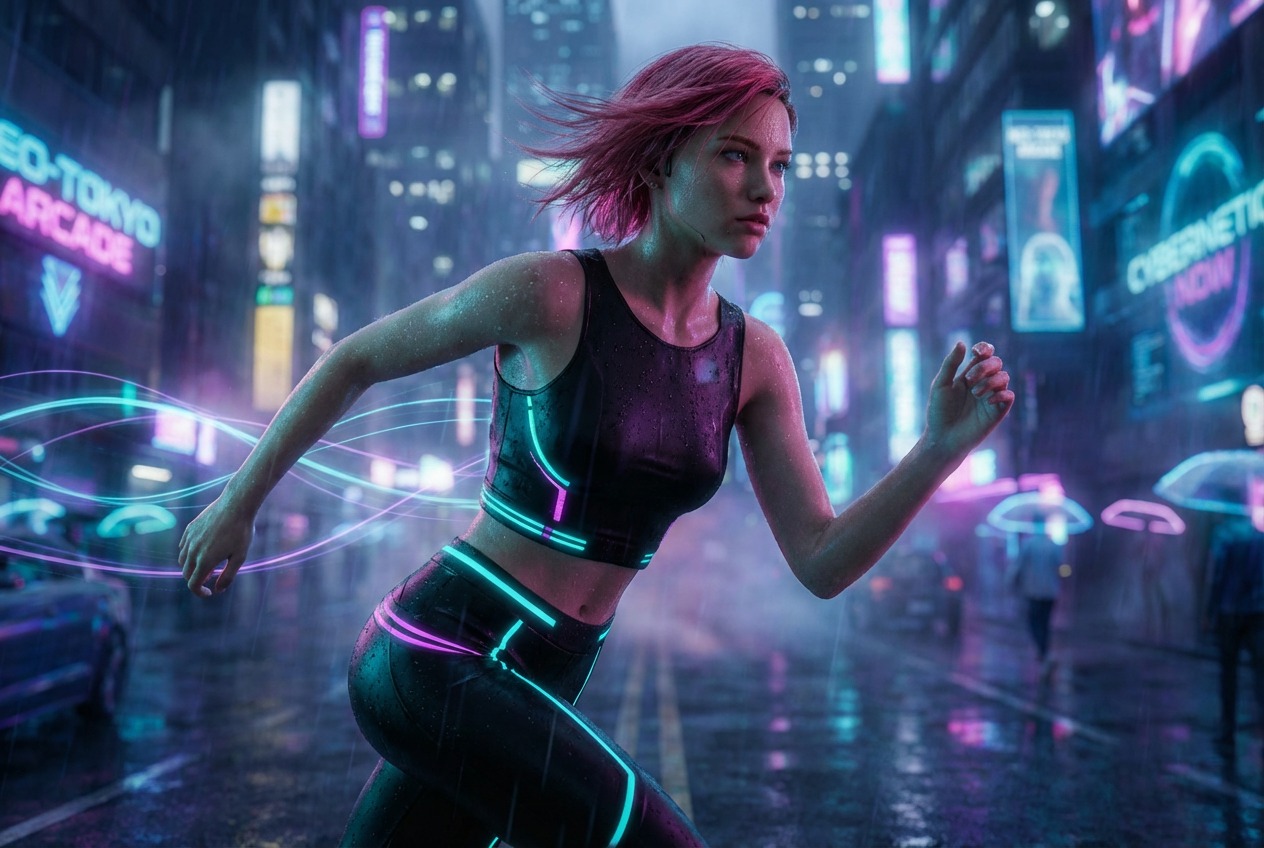
Sora 2 is the updated version of OpenAI’s flagship AI video generator model that can generate realistic video scenes with audio from written prompts and reference images. Instead of filming footage with cameras, users can describe a scene in text and the model generates a short video that visually matches the prompt.
Earlier AI video generators could produce short clips, but they often struggled with:
- maintaining consistent characters
- realistic motion
- believable physics
- complex multi-scene narratives
Sora 2 addresses many of these limitations. The system is designed to understand the physical behavior of objects, camera movement, lighting, and cinematic composition, so it can produce videos that feel closer to real footage or professional animation.
In simple terms, Sora 2 attempts to simulate the real world well enough that it can generate believable video from imagination alone.
For creators, marketers, educators, and filmmakers, this marks a major step toward AI-assisted video production.
Key Updated Features of Sora 2
1. Text-to-Video Generation
The core capability of Sora 2 is transforming written prompts into video.
For example, a prompt like the one below can generate a short video that visually represents the scene:
“A cinematic drone shot of a futuristic city at sunset with flying cars and neon lights reflecting on wet streets.”
This dramatically reduces the effort required to produce visual content. Instead of going through all the hassle of traditional video production, such as hiring actors, selecting locations, shooting and editing the footage, creators can now experiment with ideas simply by changing their text prompts.
2. Realistic Motion and Physics
One of the biggest improvements in Sora 2 is how it simulates motion and physical interactions.
Earlier AI models frequently produced scenes where:
- objects moved unnaturally
- limbs appeared distorted
- motion lacked weight or momentum
Sora 2 aims to model the real world more accurately. Objects fall, collide, and move in ways that resemble real physics. This improvement makes generated videos feel more believable and reduces the “AI uncanny valley” effect.
3. Scene & Character Consistency
Maintaining visual consistency across frames has historically been difficult for AI video generation. Sora 2 improves this by keeping elements stable across the video:
- characters maintain their appearance
- objects remain in place unless moved
- environments stay coherent
This consistency is essential for storytelling and makes it possible to generate clips that resemble actual film scenes rather than random visual fragments.
4. Native Audio Generation
Another notable capability in Sora 2 is native audio generation, which allows the model to produce sound alongside the generated video. Instead of creating visuals alone, the system can generate synchronized elements such as dialogue, background ambience, and sound effects that match the scene.
For example, a prompt describing a busy street market could produce visuals of people walking through stalls while also generating environmental sounds such as chatter, footsteps, and distant traffic. Similarly, a prompt describing ocean waves may include the sound of water crashing against the shore.
This ability to generate audio and video together makes scenes feel more immersive and reduces the need for separate sound design during early-stage prototyping. For creators, it means a single prompt can generate a more complete piece of media rather than just silent footage.
5. Cinematic Camera Control
Another improvement is better handling of camera movement and composition. Users can specify cinematic instructions such as:
- close-up shots
- wide establishing shots
- drone perspectives
- slow motion
- tracking shots
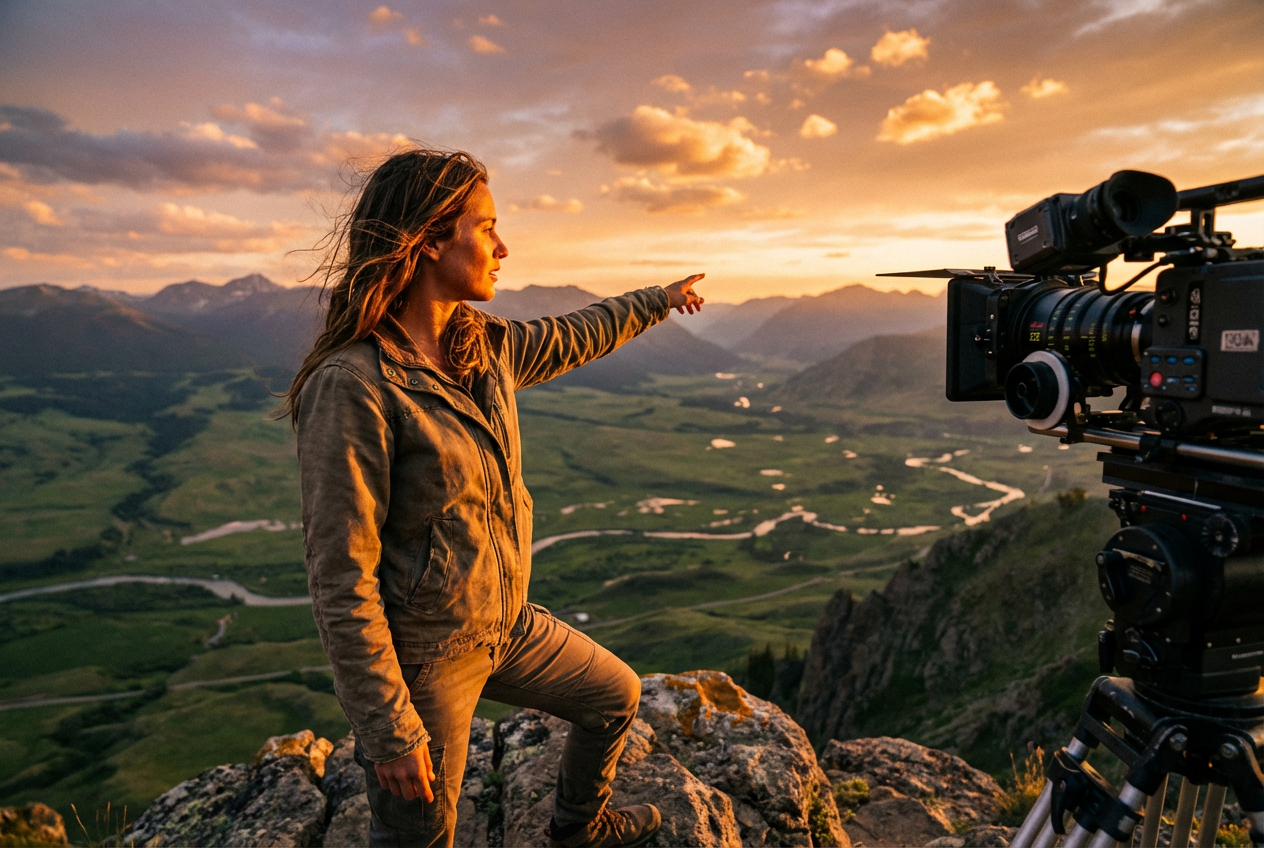
The AI interprets these directions and generates video with camera motion that resembles professional filmmaking techniques.
This makes Sora 2 particularly useful for storyboard creation, concept visualization, and experimental filmmaking.
6. Longer and More Complex Scenes
Sora 2 is designed to support longer sequences and more complex scenes, with the new update enabling up to 20 seconds of video in a single output. This means you can effectively make entire short stories instead of isolated clips.
While the tech is still evolving, these improvements move AI video generation closer to short-form storytelling.
7. Creative Style Control
Another strength of Sora 2 is the ability to control visual style through prompts.
Users can request styles such as:
- cinematic realism
- animation
- watercolor painting
- retro film aesthetic
- anime-inspired visuals
Because the model has been trained on large datasets of video and imagery, it can approximate different visual styles surprisingly well.
For content creators, this means one idea can be produced in multiple visual styles simply by changing the prompt or giving a unique reference image.
How Sora 2 Actually Works (Simplified Explanation)
Under the hood, Sora 2 uses advanced AI techniques similar to those used in modern image generation systems.
The Sora 2 AI video generation process starts by interpreting the written prompt, identifying key elements such as the subject, actions, environment, lighting, and visual style. For instance, a prompt like “A golden retriever running across a snowy field during sunrise” would let the model recognize the subject, action, setting, and time of day.
Next, the system generates a sequence of video frames with audio that match the description. Unlike traditional animation pipelines, this happens entirely within the AI model, which predicts each frame while keeping objects consistent and coherent across time.
Finally, the model refines motion, textures, and lighting to make the scene appear realistic. The result is a video where movement feels natural, lighting remains consistent, and objects behave logically, producing footage that closely resembles real-world visuals.
How to Create Videos with Sora 2 on OpenArt
One of the easiest ways to experiment with Sora 2 is through OpenArt, which hosts multiple AI video models in one place.
OpenArt allows creators to generate AI videos with Sora 2’s latest update directly inside the platform, without requiring access to restricted beta programs or separate tools.
If you’d like to see a practical walkthrough of how Sora 2 works on OpenArt, check out this YouTube video.
1. Select the Sora 2 AI Model
Open the Video tool on OpenArt to begin creating a video. Inside the tool, you will see a list of available AI video generation models. Select Sora 2 from this list to load the model’s generation interface.
Once the model is selected, the platform displays the prompt input area and the available generation settings.
2. Write a Scene Prompt
Next, describe the video you want to generate. OpenArt allows you to create videos using either a text prompt or a reference image that helps guide the scene.
When writing a prompt, clearly describe the main subject, the environment, the lighting conditions, and the camera perspective. The model uses this information to determine how the scene should appear in the generated video.
For example:
“Dynamic overhead shot of diverse hands reaching for colorful smoothie bowls on a bright white table, vibrant tropical fruit toppings, natural daylight from above, quick energetic movements, fresh and appetizing presentation, trendy lifestyle content aesthetic.”
OpenArt also includes an “Auto Polish” option. When enabled, this feature automatically refines the prompt to improve clarity and add helpful descriptive details that may produce better results.
3. Configure Video Settings
After entering the prompt, configure the output settings before running the generation. In the OpenArt interface, you can adjust several parameters that determine how the final video will look.
First, choose the resolution of the output video. OpenArt currently provides options such as 720p, 1080p, and 1080p+, allowing you to balance rendering speed and visual clarity depending on your project needs.
Next, select the aspect ratio. The platform supports 9:16 for vertical videos and 16:9 for widescreen formats. Vertical videos are typically suited for platforms like TikTok or Instagram Reels, while 16:9 works better for YouTube or cinematic-style content.
Finally, set the video duration. Available clip lengths include 4 seconds, 8 seconds, 12 seconds, 16 seconds, and 20 seconds. Shorter durations are useful for quick prompt testing, while longer durations allow the model to generate more detailed motion within the scene.
4. Generate and Download Your Video
Once the prompt and settings are configured, run the generation process. The system will create a video based on the prompt and the selected parameters.
When the rendering finishes, the generated video will appear in the preview area. You can review the result directly in the interface and then download it.
Examples of What Sora 2 Can Create
The flexibility of Sora 2 means it can produce many types of visual content.
Cinematic Scenes
Creators can generate dramatic shots that resemble scenes from films.
Examples include:
- desert landscapes
- futuristic cities
- historical environments
- fantasy worlds.
Product Visualizations
Brands can use AI-generated video to create conceptual advertisements.
For example:
- a sneaker floating through a surreal environment
- a phone showcased in futuristic motion graphics
- luxury product displays.
Short Stories
By chaining multiple prompts together, creators can experiment with short narrative sequences.
This can help with:
- pre-visualizing scripts
- storyboarding ideas
- concept testing.
Educational Videos
Educators can generate visual demonstrations of concepts that might otherwise be difficult to film.
Examples include:
- historical reconstructions
- scientific simulations
- animated explanations.
Sora 2 vs Other AI Video Generators
The AI video space has become increasingly competitive. Several other platforms are exploring similar technology. Tools in this category include:
- Runway Gen-3
- Pika
- Google Veo
Each tool has different strengths. Some platforms focus on editing existing footage, while others specialize in text-to-video generation. Sora 2 stands out because of its emphasis on world simulation, realistic physics, and cinematic storytelling.
Try the Future of AI Video Generation with Sora 2 on OpenArt
Now that you know how powerful this AI model is, head over to Sora 2 on OpenArt to begin creating your first video!
OpenArt’s easy, feature-rich interface ensures that you get the best AI video generation experience even if you are just starting out.

.png)